

This secure portal allows patients and authorised representatives to submit Subject Access Requests (SARs), track progress, communicate with the Trust, and receive records safely.
1. Creating an account
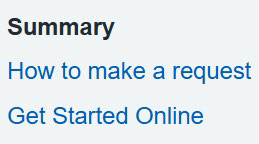
2. Select ‘Get Started Online’ on the left-hand side.
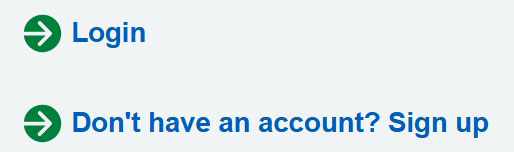
3. Click 'Don't have an account? Sign up'
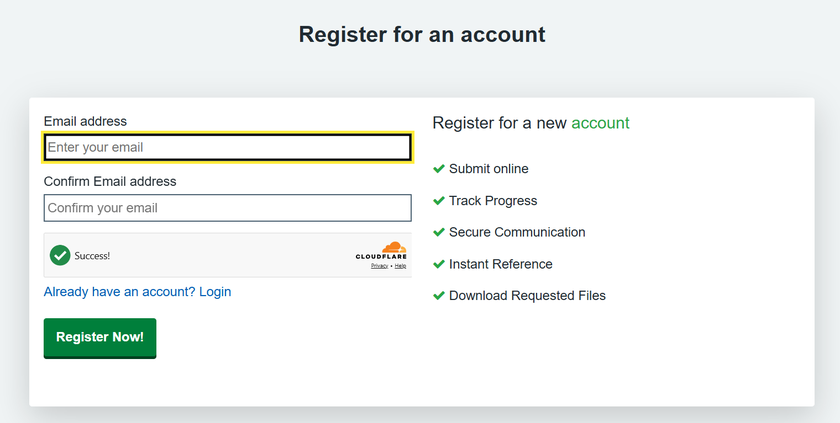
4. Enter your email address and click 'Register now!'.
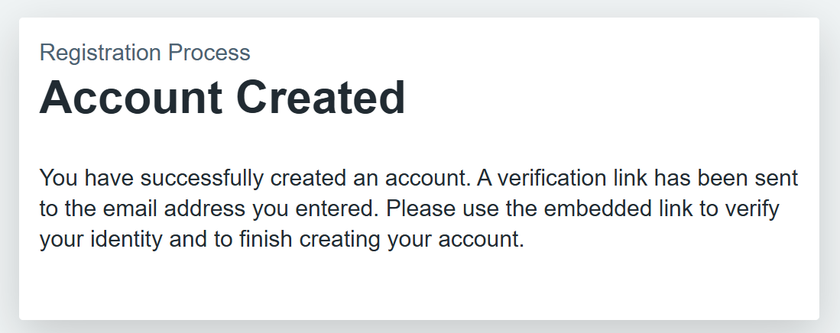
5. A pop up will appear to confirm your account is created.
6. Check your email for a message from 'SARS No Reply'.
7. Click the 'Login' link.
8. Create and confirm your password.
9. Select 'Set Password' to complete registration.
2. Signing in
- Access the portal homepage (opens in a new tab)
- Scroll down to the bottom of the page, or click 'Get started online'
3. Select 'Login'
4. Enter your email and password
5. Click 'Sign in'
6. If required, use 'Forgotten Password?' to reset access.
3. Managing your profile
Within ‘My Profile’ you can update your password and enable Two-Factor Authentication (2FA) for enhanced security.
To enable 2FA:
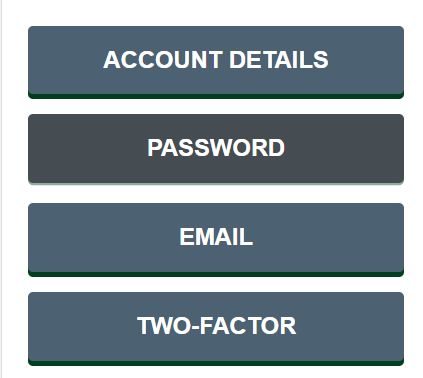
- Click on ‘My Profile’

2. Select 'Two-Factor'
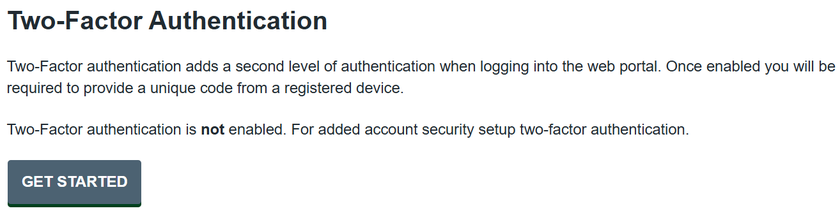
3. Click 'Get Started'
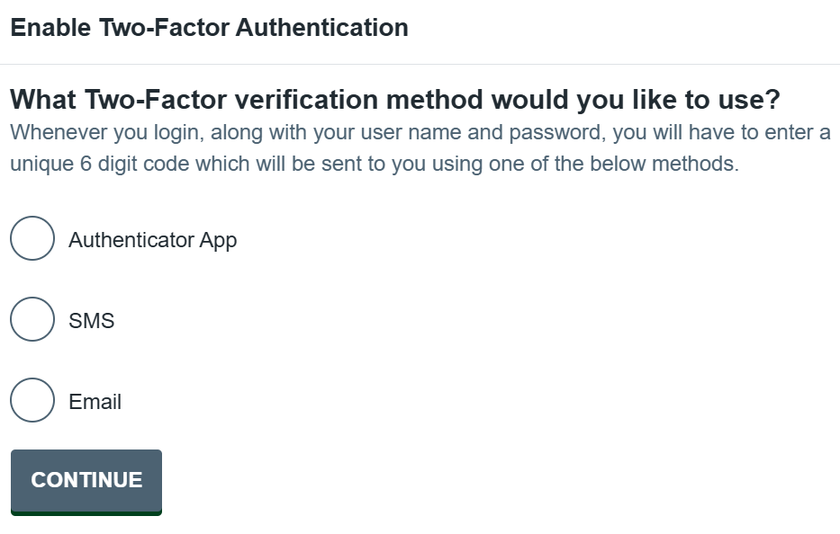
4. Choose authentication method
5. Follow instructions to complete setup
It is strongly recommended to enable Two-Factor Authentication.
4. Submitting a Request
- Go to the ‘Home’ area and click ‘New Request’
- Choose the form that matches your request type
- Complete all required fields (*)
- Upload supporting documents
- Select ‘Submit’
- You will receive on-screen and email confirmation
5. Tracking your Request
- In the ‘Home’ area select ‘Manage Requests’.
- View list of submitted requests including status and reference number.
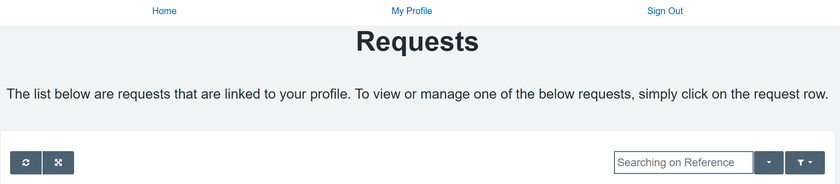
3. Use refresh to check updates.
4. Respond to any messages promptly to avoid delays.
You will receive email notifications when updates or actions are required.
6. Accessing your Records
- Click on your completed request.
- Open on your messages.
- There will be a message body and a list of files. You can view files via the browser or download them.

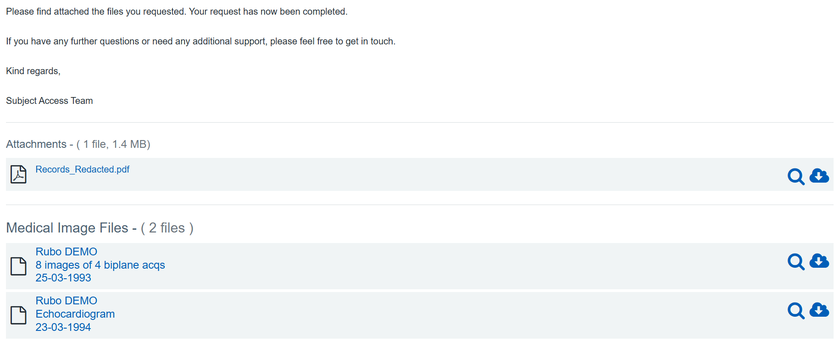
4. Download individual files or all files as a ZIP.
5. For imaging files (DICOM), there is a special online viewer, allowing you to view the imaging and download individual frames.
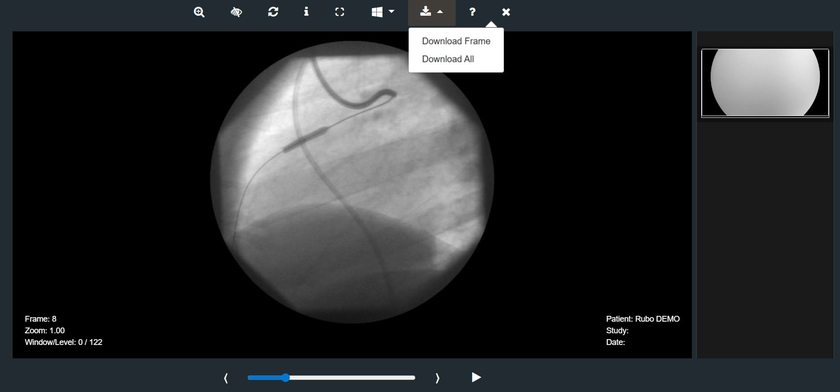
6. Individual frames are downloaded as a friendly format accessible via all mainstream devices and applications.
7. If you ‘Download All’, this will be in the native DICOM format and will require a special viewer application to access and view the files.
Store downloaded records securely. You are responsible for protecting your data.